Create an API key
Open API in your dashboard, create a key, choose an expiration and copy it somewhere safe.
An API key lets a tool publish and update your sites for you: Claude Code, Cursor, n8n, GitHub Actions or your own script. API keys are available on the Pro and Large plans.
Create your key
- In your dashboard, open API in the sidebar.
- Click Create key.
- Under Name, type the tool that will use the key (for example
Claude Code). - Under Expiration, pick 30 days, 90 days, 1 year, Never or Custom date.
- Click Create key.
- Click Copy, paste the key somewhere safe (a password manager, or the tool that needs it), then click Done.
Copy it now
Supadrop shows the full key only once, right after you create it. Then the list only shows its first characters (sk_live_c20bd87e••••), to help you tell your keys apart.
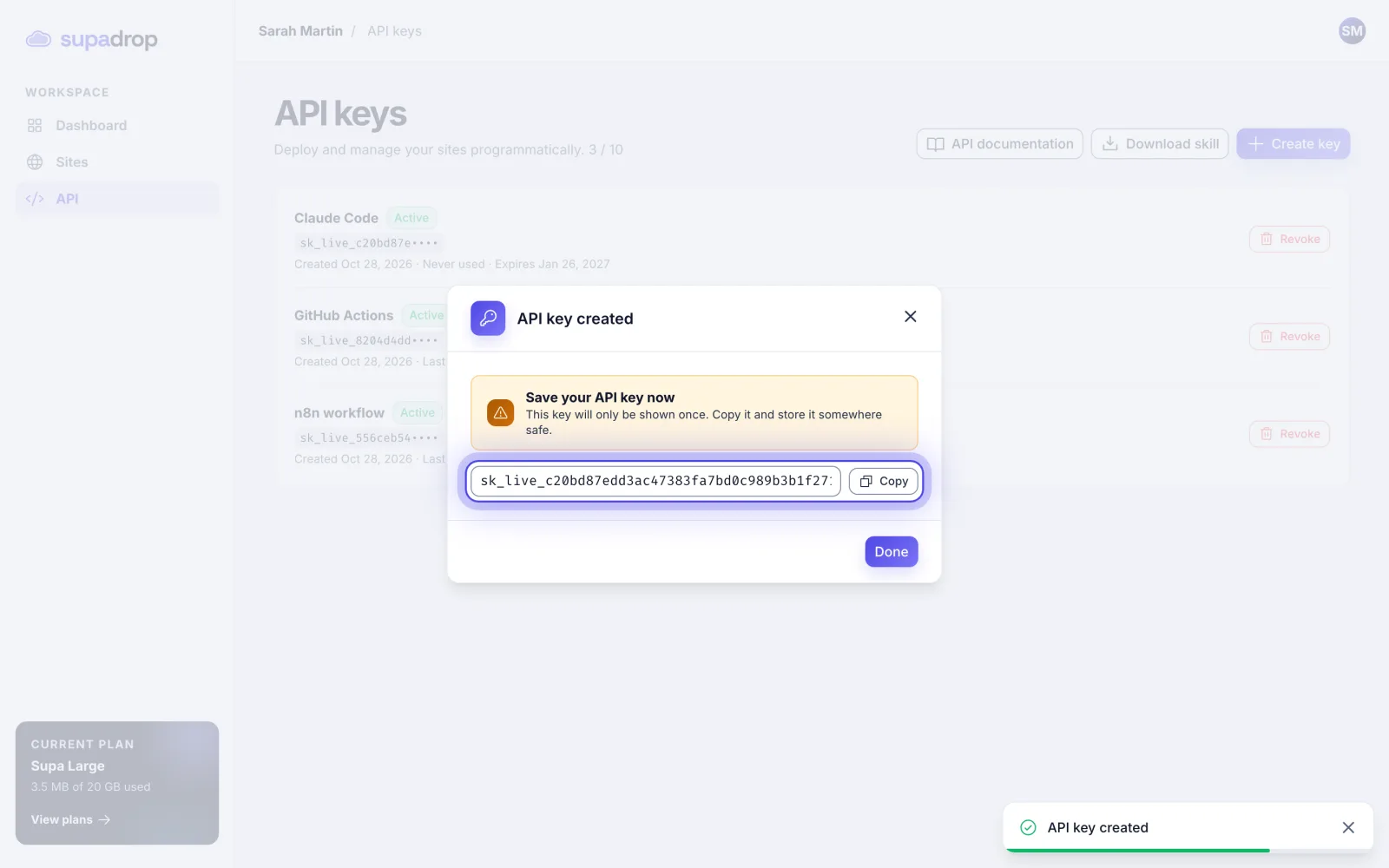
Lost your key? It cannot be shown again. Revoke it, then create a new one.
Use your key
Send the key in the Authorization header of each request:
Authorization: Bearer sk_live_YOUR_KEYAll endpoints and examples are in the API documentation. To let Claude or Cursor deploy your sites, see Deploy from Claude or Cursor with the Supadrop skill.
Manage your keys
- You can have up to 10 keys. The counter next to the page title shows how many you use (
3 / 10). Expired keys count too. - Create one key per tool. You can then revoke one tool without breaking the others.
- Each key shows Active or Expired, when it was last used and when it expires.
- To revoke a key, click Revoke, then Revoke key. Any tool that uses it stops working at once.
- If you move to a plan without the API, your keys stop working. You can still see and revoke them.