A PDF on your laptop has no address, so nobody can open it from an email, a text, or a bio. To make a PDF a link, you upload it somewhere that serves it at a public URL, then share that URL. Every method in this guide follows that pattern. What changes is what people see when they click, and whether the link survives the next update.
The quick answer: 3 steps
- Upload your PDF to a service that can share files publicly (a cloud drive, a PDF host, or your own website).
- Set the file to public (“Anyone with the link”) and copy the URL.
- Share the URL by email, chat, social media, or a QR code.
That works with any of the five methods below. If you want the link to open the document itself rather than a storage app, skip to method 4.
Method 1: Google Drive
Drive is the method most people try first, because almost everyone already has a Google account. Here is how to get a link to your PDF:
- Open drive.google.com, click New, then File upload, and pick your PDF.
- Right-click the uploaded file and choose Share.
- Under General access, change Restricted to Anyone with the link. Keep the role on Viewer.
- Click Copy link.
The link works, but it has three weak spots you should know about before you send it to a client or print it:
- It opens Drive, not your PDF. Visitors land in Google’s preview interface, with toolbars and a “Sign in” prompt around your document.
- “Request access” errors. If the sharing setting is left on Restricted, or someone changes it later, every recipient hits an access request screen instead of the file.
- A long, unreadable URL. Drive links are a long random ID, so they look untrustworthy in an email and make a dense QR code.
Drive also locks a file for about 24 hours when too many people open it in a short window. We cover that trap, and how to work around it, in our guide to hosting a file on Google Drive.
Method 2: Dropbox or OneDrive
Both work the same way as Drive, with the same trade-offs.
Dropbox: hover over the PDF, click Share, then Copy link. By default the link ends in ?dl=0, which opens the file in Dropbox’s previewer. Changing the end to ?raw=1 asks Dropbox to send the raw file so the browser displays it directly, while ?dl=1 forces a download. Whether raw=1 opens inline depends on the visitor’s browser settings, so test it before you send it widely.
OneDrive: right-click the PDF, choose Share, set the link to Anyone, then Copy. Recipients see the PDF inside Microsoft’s online viewer.
Method 3: Adobe Acrobat online
If you already use Acrobat, it can share a PDF as a link too:
- Open the PDF in Acrobat (desktop or acrobat.adobe.com) and sign in to your Adobe account.
- Click Share, then choose who can open the link, for example Anyone with the link.
- Copy the link and send it.
Recipients can view the PDF in their browser without signing in. You need an Adobe account to create the link, and the file is stored in Adobe Document Cloud, so free-plan storage limits apply. The viewer shows Adobe’s interface around your document.
Method 4: A direct PDF link with Supadrop
A direct link opens your PDF itself, full screen in the browser, with nothing between the click and the document. That is what Supadrop is built for: you turn a PDF into a link by dragging the file into the dashboard.
- Create a site. Sign in at app.supadrop.host, give the site a name, and pick a subdomain such as
menu.supadrop.siteorjane-cv.supadrop.site. - Drop your PDF into the upload zone.
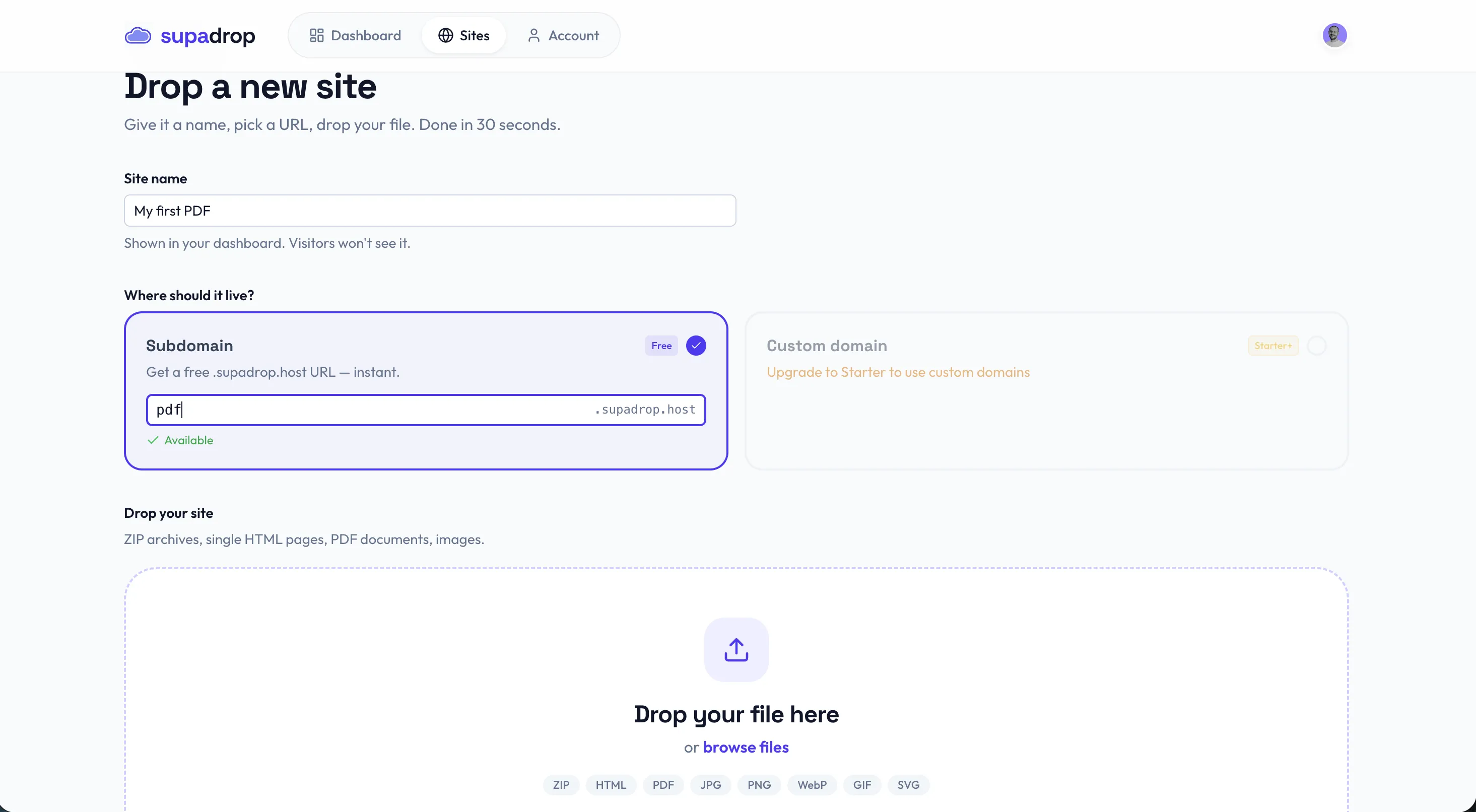
- Copy your link. About 30 seconds later the PDF is live over HTTPS, and the dashboard shows the public URL with a copy button and a ready-to-download QR code.
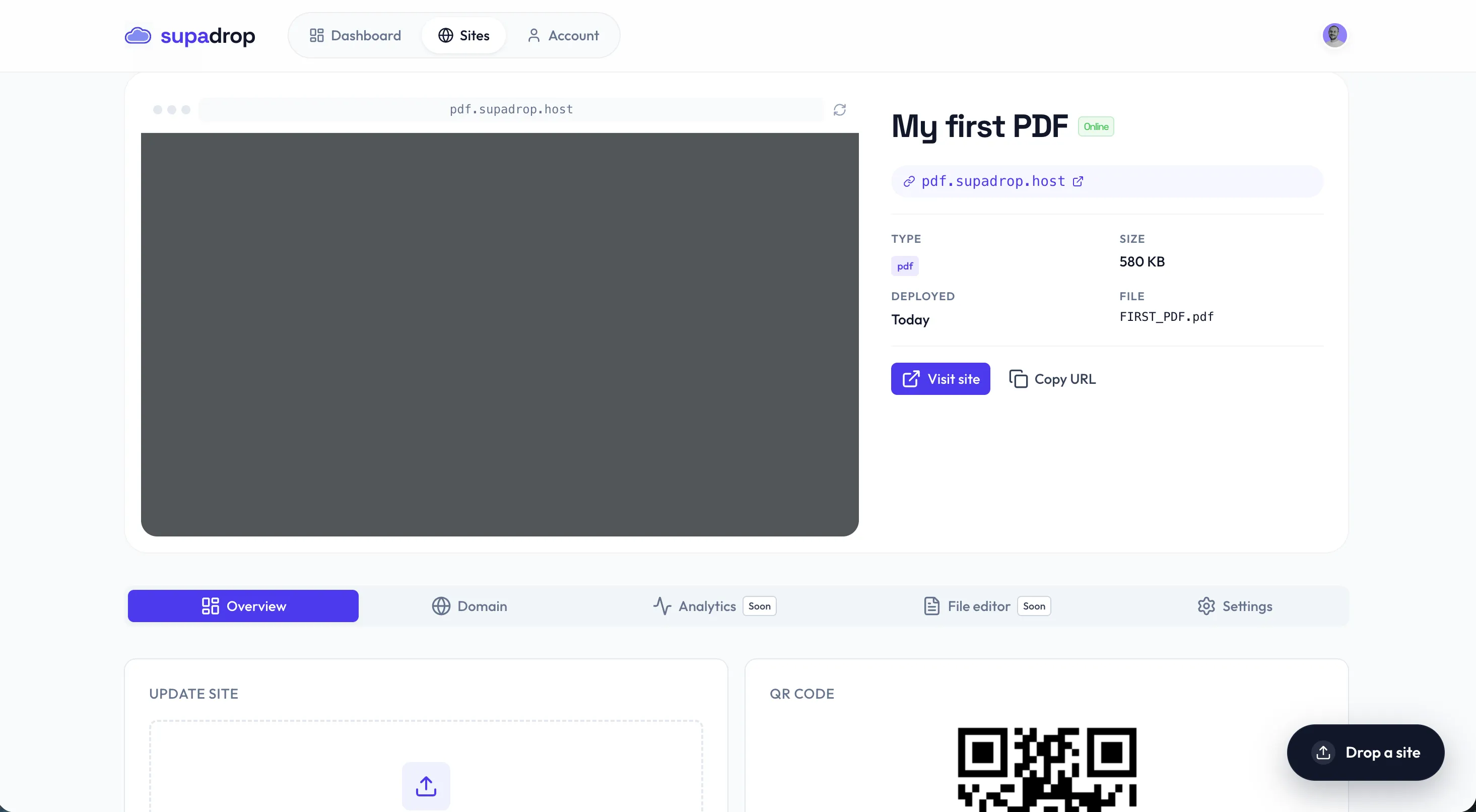
What you get compared with a cloud drive:
- The PDF opens directly. No storage app, no sign-in prompt, no request access screen for your readers.
- The URL never changes. Upload a new version of the PDF and the same link (and every QR code you printed) opens the new file.
- A free QR code for every site, ready for flyers, menus, or business cards.
- Your own domain on paid plans, so the link can read
docs.yourbrand.cominstead of a generic address.
Every account starts with a 15-day free trial, no credit card required. After that, plans start at $5 per month billed yearly. It is a good fit for documents you share again and again: a CV (see our guide to hosting a resume online), a menu, a price list, a brochure, or a lead magnet.
Method 5: Upload the PDF to your own website
If you already run a website, you can host the PDF there and link to it from any page.
- WordPress: go to Media, then Add New, upload the PDF, open it in the media library, and click Copy URL to clipboard.
- Squarespace, Wix, Webflow and most site builders: add a link or button, choose File as the destination, and upload the PDF. The builder stores it and creates the URL.
- A plain HTML site: put the PDF in your site folder and link to it with
<a href="/files/brochure.pdf">Download the brochure</a>.
This gives you a link on your own domain at no extra cost. The catch: replacing the file often means a new filename and a new URL, so old links and printed QR codes break unless you overwrite the file with the exact same name.
Which method should you use?
Pick Google Drive, Dropbox or OneDrive to send a file once to people you know. Pick Supadrop when the link is public, long-lived, or printed, and you want readers to land on the document itself. Pick your own website when you already have one and rarely update the file. For a broader comparison of tools, see our ranking of the best free PDF hosting tools.
How to make a PDF a link on iPhone and Android
You can do every method from your phone.
On iPhone: open the Files app, long-press the PDF, tap Share, and send it to the Google Drive, Dropbox or OneDrive app. Then open that app, tap the three dots next to the file, and choose Copy link. To use Supadrop, open app.supadrop.host in Safari and tap the upload zone: it opens the Files picker so you can choose the PDF.
On Android: open the Files or Drive app, tap the three dots next to the PDF, then Share or Copy link. If the file is not in Drive yet, tap +, then Upload, first. Supadrop works the same way in Chrome: tap the upload zone and pick the PDF from your downloads.
Did you mean a link inside a PDF?
Some people searching “how to create a link in a PDF” want something else: a clickable hyperlink inside the document. Here is the short version.
- Adobe Acrobat: open Edit a PDF, choose Link, then Add/Edit Web or Document Link, draw a box over the text, and enter the URL.
- Preview on Mac: Preview cannot add new links. Add them in the source document instead.
- Word, Google Docs or Pages: select the text, insert a link (Ctrl+K or Cmd+K), then export or download as PDF. The links stay clickable in the PDF.
Troubleshooting PDF links
The link asks for access. The file is still private. In Drive, set General access to Anyone with the link. In OneDrive, make sure the link type is Anyone, not People in your organization.
The link downloads the PDF instead of opening it. The server, or the URL itself, is telling the browser to download. On Dropbox, replace dl=1 with raw=1. On your own site, avoid the download attribute on the link. Some phones also download PDFs by design, so test on the devices your readers use.
The link broke after you updated the file. Uploading a new file usually creates a new URL. In Drive, use Manage versions to upload over the original. On a website, overwrite the file with the same name. On Supadrop, upload the new PDF to the same site and the URL stays identical.
You want the link to open on a specific page. Add #page= and the page number to a direct PDF URL, for example yoursite.com/guide.pdf#page=4. This works in desktop browsers on direct links, not on Drive or Dropbox previews.
Share your PDF in the next minute
Making a PDF a link always comes down to the same move: put the file at a public URL, then share the URL. Cloud drives get you there for free, with a preview screen and some fragility. When the link matters (a CV, a menu, a client document, a printed QR code), drop your PDF on Supadrop and share a clean link that opens the document and never changes.
Frequently asked questions
Can I make a PDF a link for free?
Yes. Google Drive, Dropbox, OneDrive and Adobe Acrobat online all create a PDF link on their free plans, and so does your own website if you have one. The trade-off is what people see: cloud storage links open a file preview, not the document itself. Supadrop gives you a clean direct link with a 15-day free trial, no credit card, then plans from $5 per month billed yearly.
How do I turn a PDF into a link without Google Drive?
Upload the PDF to a host that serves it at a public URL. With Supadrop, you drag the PDF into the dashboard, pick a subdomain, and copy the link, which opens the PDF directly in the browser. Dropbox, OneDrive and Adobe Acrobat online also work, and a website media library is another option. Our Google Drive hosting guide explains when Drive becomes a problem.
Will my PDF link expire?
It depends on where the file lives. Cloud storage links stay live until you move, delete or unshare the file. Some free PDF sharing tools expire links or cap views. A link on your own hosting stays live as long as your site and plan are active, and on Supadrop replacing the PDF keeps the exact same URL.
Can I link to a specific page of a PDF?
Yes. Add #page= plus the page number to a direct PDF link, for example yoursite.com/guide.pdf#page=4. Desktop browsers jump straight to that page. It does not work on Drive or Dropbox preview links, because they open a viewer instead of the file.
How do I make a QR code for a PDF link?
Get a stable public URL first, then encode it in a QR code. Supadrop generates the QR code automatically next to every site’s link. Avoid cloud storage share links for printed codes: they are long and break if a permission changes. Our step-by-step guide to creating a QR code for a PDF covers sizing and printing.