A lead magnet is a free, useful resource you offer in exchange for an email address. It is the simplest way to turn one-time visitors into an email list you own. Most tutorials on how to create a lead magnet stop at the content, then leave you to stitch together a landing page builder, a file host, and an email tool just to deliver one PDF.
This guide covers the whole path. You pick a lead magnet worth downloading, then publish it behind an email form in four steps, with a list of verified emails waiting for you at the end.
What you need before you start
- Your lead magnet file: a PDF, a single HTML page, or a zipped website folder. If it is not finished yet, the next section helps you choose a format.
- A Supadrop account on the Pro or Large plan: email capture is included in both. You can upload your file during the 15-day trial and switch the email gate on when you upgrade. See plans and pricing.
- About five minutes: no landing page builder, no form plugin, no code.
Pick a lead magnet people actually want
A lead magnet works when it solves one specific problem fast. A 60-page ebook looks generous, but a one-page checklist that gets used today converts better and builds more trust. Start from the question your audience asks most often before they buy, then choose the format that answers it quickest:
- Checklist or cheat sheet: a single page that prevents mistakes (“Pre-launch SEO checklist”).
- Template or swipe file: something people fill in and reuse (email scripts, a content calendar, a budget sheet).
- Short PDF guide: 5 to 15 pages that explain one method, with examples.
- Resource page or mini site: a curated list of tools, links, or tips, built as a small website instead of a PDF.
Design it with the tool you already know (Canva, Google Docs, Figma, or an AI site builder), then export it as a PDF or HTML. For a real example, open our demo lead magnet, a short “4 SEO marketing tips” page gated behind an email form.
Step 1: Upload your PDF or site
In the Supadrop dashboard, click Drop a new site. Give it a name (visitors will not see it), pick where it lives, and drop your file.
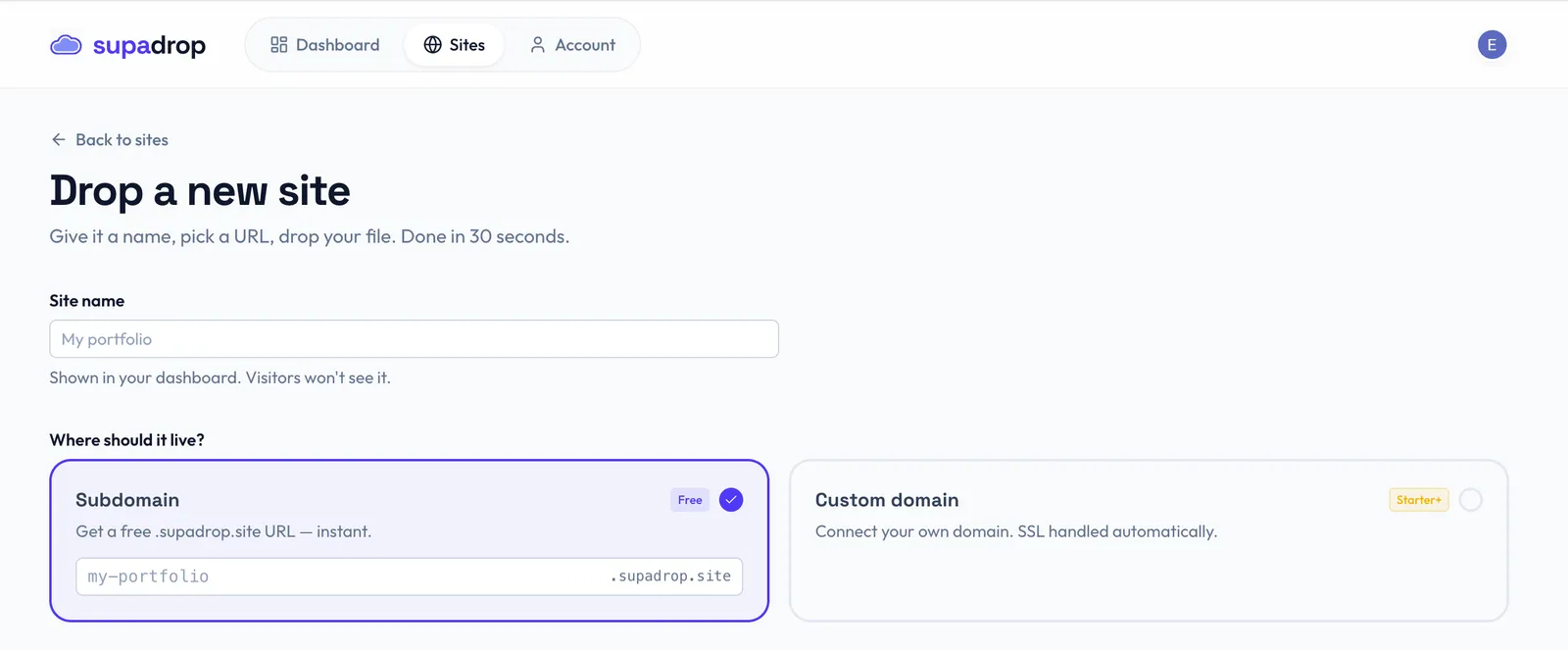
You have two options for the address:
- Subdomain: an instant URL such as
seo-checklist.supadrop.site, ready as soon as the upload finishes. - Custom domain: your own domain, like
guide.yourbrand.com, with SSL handled automatically. A branded link looks more trustworthy when you share it on social media or in an ad.
PDFs are served as a clean link that opens directly in the browser. If you have never done it before, our page on turning a PDF into a link explains how it works.
Step 2: Turn on email capture and write your message
Open your site and go to the Email capture tab. Switch on Require email to access this site, then write the three pieces of copy your visitors will see:
- Headline: the promise, in a few words (“Get instant access”, “Download the checklist”).
- Description: one sentence on what they get and why it is worth an email.
- Button text: the action (“Unlock”, “Send me the guide”).
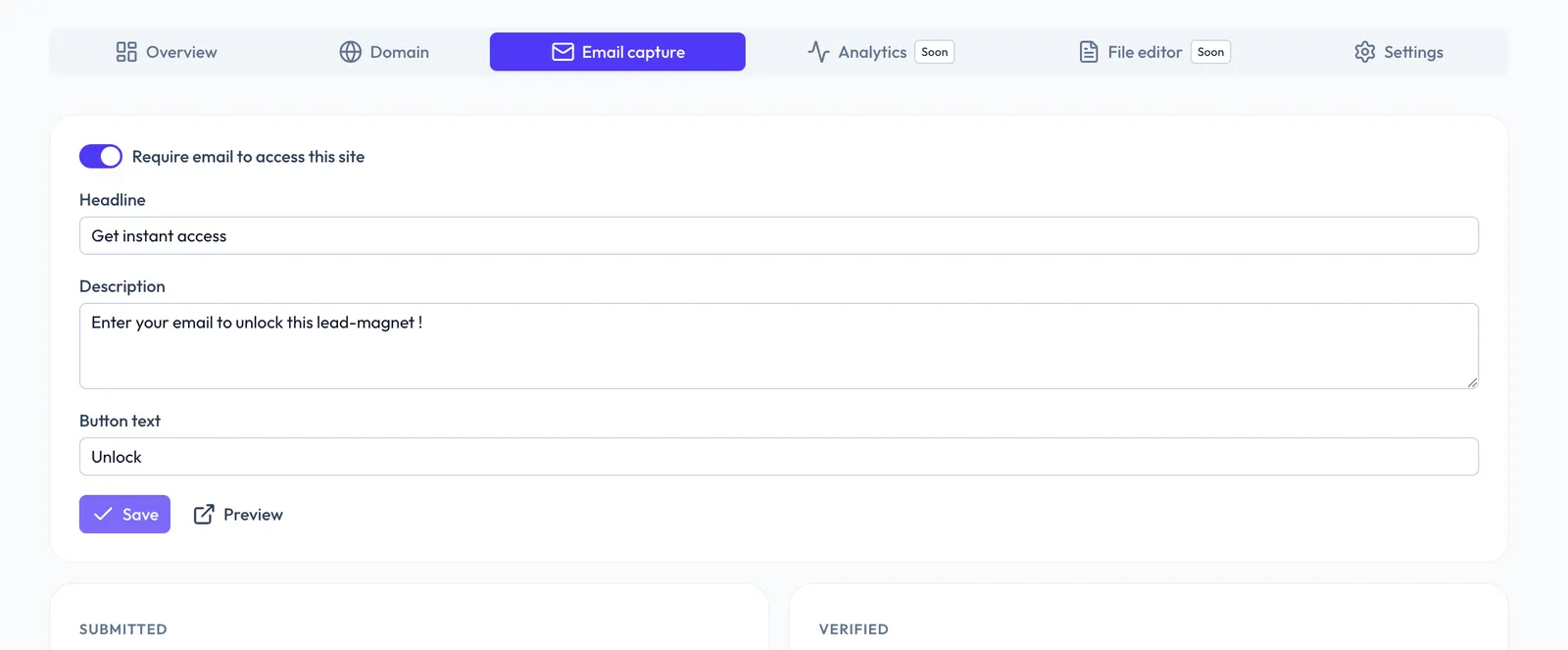
Click Save. From now on, your content is gated: anyone who opens the link sees the email form first.
Step 3: Preview your email gate
Click Preview to see exactly what a visitor sees before they reach your content.

Here is the visitor journey, from their side:
- They open your link and land on the email form.
- They enter their address and receive a one-click confirmation link.
- They click it and go straight to your PDF or site.
- They will not be asked again for 30 days on the same browser.
If the headline feels weak or the description runs too long, go back to Step 2, edit, save, and preview again. It takes seconds, so test two or three versions before you share the link widely.
Step 4: View your list and export it as CSV
Back in the Email capture tab, scroll below the settings. Two counters show how your lead magnet performs: Submitted (every address entered) and Verified (addresses confirmed through the link), with the verification rate underneath.
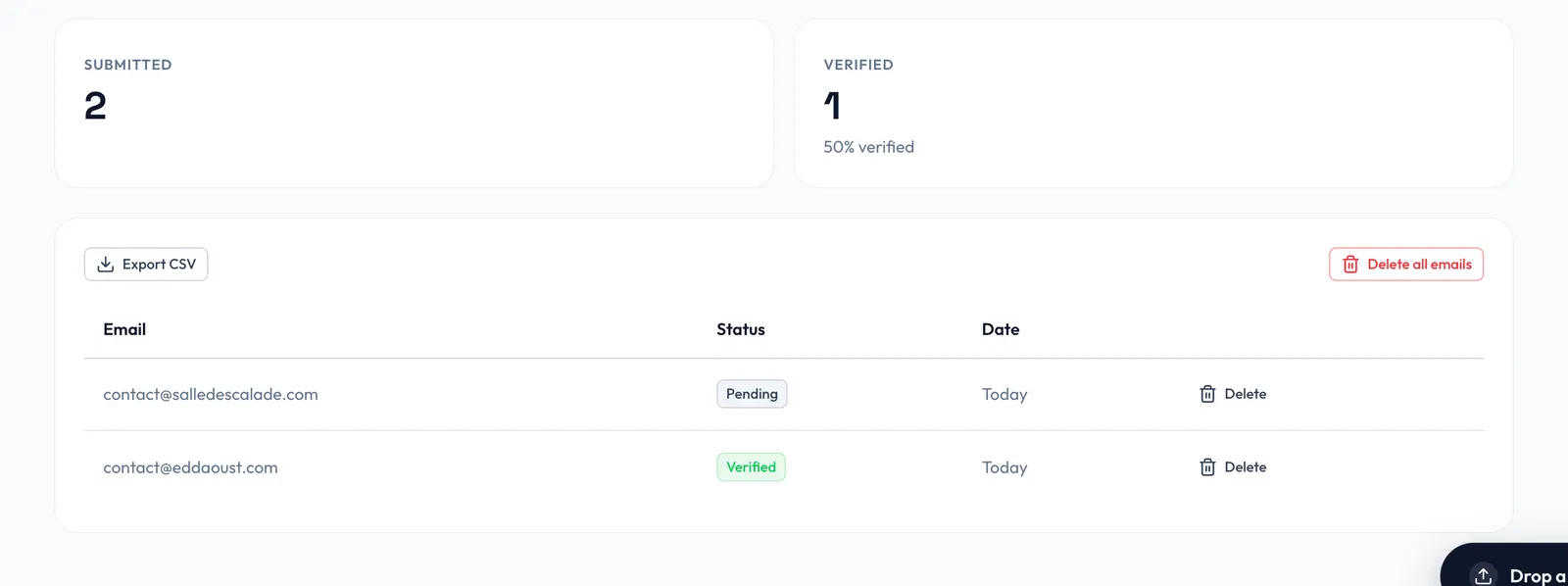
Each row shows the email, its status (Pending or Verified), and the date. From here you can:
- Export CSV to download the list and move it into your email tool.
- Delete a single address, for example when someone asks to be removed.
- Delete all emails to start fresh after a campaign.
Why only verified emails unlock your content
Most lead capture forms accept anything typed into the field. People who want the freebie without joining a list enter test@test.com, and honest visitors make typos. Both end up in your list, and both bounce the first time you send an email. A high bounce rate hurts your sender reputation, which pushes your future emails toward spam folders, even for real subscribers.
Supadrop email capture checks every address before the content opens. Only verified addresses unlock your lead magnet, so the list you export is made of inboxes that exist and belong to people who clicked. The only email Supadrop sends your visitors is that verification link. No newsletter, no marketing in your name.
What to do with your email list
Collecting emails is the first half. Here is how to make the list useful:
- Import the CSV into your email marketing tool. Mailchimp, Kit, MailerLite, and Brevo all accept a CSV upload. Tag these contacts with the name of the lead magnet so you know where they came from.
- Send a welcome email within a day, while your lead magnet is still fresh in their mind. Remind them what they downloaded and give one extra tip.
- Follow up with value, then an offer. A short sequence of two or three helpful emails earns the right to present your product or service.
Then promote the link everywhere your audience already is: your link in bio, a pinned social post, your email signature, the end of your blog articles. For flyers, business cards, and event slides, create a QR code for your link so people can scan it straight to the email gate.
Frequently asked questions
What is a lead magnet?
A lead magnet is a free resource you trade for an email address: a checklist, a template, a short guide, or a small resource website. It turns anonymous traffic into a list of people you can contact again. The best ones solve one narrow problem quickly and lead naturally to what you sell.
What are good lead magnet ideas?
Checklists, fill-in templates, swipe files, cheat sheets, short PDF guides of 5 to 15 pages, and small resource sites such as a curated tool list. Start from the question your audience asks most before they buy, and answer it in a format they can use in a few minutes.
Where should I host a lead magnet PDF?
At a clean, stable URL you control, with the email form in front of the file. On Supadrop, you upload the PDF and turn on email capture: the same link shows the email gate first and the PDF after verification. Google Drive or Dropbox links cannot collect emails, and a permission change can break them.
Can people enter a fake email to get my lead magnet?
Not with Supadrop email capture. Visitors receive a one-click confirmation link, and only verified addresses unlock the content. Fake or mistyped addresses stay marked as Pending in your dashboard, so your exported list only contains emails that work.
Do I need an email marketing tool to create a lead magnet?
Not to collect emails. Supadrop gates your PDF or site, verifies each address, and exports the list as a CSV. You only need a tool like Mailchimp, Kit, MailerLite, or Brevo when you want to send newsletters or automated sequences, and they all import a CSV in a few clicks.
Which Supadrop plans include email capture?
Email capture is included in the Pro and Large plans. Pro costs $15 per month, or $10 per month billed yearly. The 15-day trial and the Starter plan do not include it, but you can host your lead magnet during the trial and turn the email gate on when you upgrade. See pricing.