A digital restaurant menu is a webpage that customers open by scanning a QR code on their table. You can create one for free in under 10 minutes using ChatGPT to write the page and Supadrop to host it online, no coding or design skills required.
Prefer to start from a ready-made design? Grab one of our free restaurant menu templates and skip straight to hosting.
What Does a Digital QR Code Menu Actually Save You?
Paper menus are expensive, slow to update, and not the most hygienic thing on a restaurant table. The shift to digital menus is not just a trend. It is backed by real data from the restaurant industry.
QR code adoption in restaurants grew 57% between 2020 and 2024, one of the fastest adoption curves in consumer tech. Restaurants and hospitality now account for 42% of all QR code scans worldwide. The reason is simple: static websites load instantly, updates cost nothing, and customers prefer the contactless experience.
Here is a quick comparison:
| Printed Menu | Digital QR Menu | |
|---|---|---|
| Update cost | Reprint every time | Free, instant |
| Hygiene | Touched by every customer | Contactless |
| Setup time | Days (design + print) | Under 10 minutes |
| Price changes | Reprint required | Edit & re-upload |
| Multiple locations | Multiply costs | Same URL, same QR |
The bottom line: a digital menu isn’t just a tech trend. It saves real money and makes your life easier every single week.
Step 1: Write Your Menu Content with ChatGPT
You probably already have a menu somewhere: a Word document, an Excel spreadsheet, a PDF, or even a photo of your printed menu. That’s a perfect starting point. (Prefer to publish your existing menu file as is, without a redesign? Our guide on creating a QR code for a PDF covers that in three steps, and you can get a link for your PDF menu in about thirty seconds.)
Open ChatGPT and drag your existing file directly into the chat (Word, Excel, PDF, or image). Then add this prompt:
Here is my current restaurant menu. Rewrite it as a clean, structured menu with dish names, short appetizing descriptions (1-2 sentences each), and prices. Keep the tone warm and inviting. Organize it into sections: Starters, Mains, Desserts, and Drinks.
ChatGPT will read your file and turn it into polished, well-organized menu text in seconds.
Don’t have an existing menu yet? No problem. Use this prompt instead:
Act as a professional menu writer. Create a restaurant menu for cuisine with starters, mains, desserts, and drinks. Include dish names, short appetizing descriptions (1-2 sentences each), and prices in . Keep the tone warm and inviting.
Edit the highlighted values to match your restaurant, then click Copy prompt.
Example output for an Italian bistro:
Starters
- Burrata & Heirloom Tomatoes – Creamy burrata served with vine-ripened tomatoes, fresh basil, and a drizzle of aged balsamic. $12
- Truffle Arancini (x3) – Crispy risotto balls filled with black truffle and mozzarella, served with a lemon aioli. $11
- Prosciutto e Melone – Thin-sliced San Daniele prosciutto with fresh cantaloupe and a honey glaze. $13
- Minestrone del Giorno – A hearty seasonal vegetable soup with cannellini beans and crusty bread. $9
Mains
- Tagliatelle al Ragù – Slow-cooked beef and pork ragù tossed with fresh egg tagliatelle and Parmigiano. $22
- Branzino al Forno – Whole roasted sea bass with capers, olives, cherry tomatoes, and white wine. $28
- (… and so on)
Edit prices and dish names to match your actual offering.
Step 2: Generate Your Restaurant Menu HTML Page with ChatGPT
Now you need to turn that text into something a phone can display. The format is called HTML. Think of it as the language web browsers understand: it is what makes text, images, and links show up as a real webpage.
You do not need to learn HTML. ChatGPT writes it for you.
Copy the menu text ChatGPT just gave you in Step 1. Then, in the same ChatGPT chat, paste it into a new message and add this prompt below it:
Convert this restaurant menu into a single HTML page. Make it mobile-first: the layout should adapt perfectly to any screen size (phone, tablet, desktop) with no sideways scrolling. Use . Organize the menu with clear headings for Starters, Mains, Desserts, and Drinks. Include the restaurant name "", the address "", the phone number "", and a reservation button linking to "". The page should feel professional, easy to read, and load instantly.
ChatGPT will generate the complete page for you. The result is a responsive webpage that looks great on any phone. Your customers can read it without zooming in or scrolling left and right.
Copy the entire code block (everything from <!DOCTYPE html> to </html>) and save it:
- Open a plain text editor (Notepad on Windows, TextEdit on Mac). Mac users: open TextEdit, then go to Format > Make Plain Text before pasting, otherwise the file will be corrupted.
- Paste the code and save the file as
menu.html. - You do not need to read or understand any of it. The file is ready to upload.
Want to preview your menu before uploading? Open your web browser (Chrome, Safari, Firefox, etc.), go to File > Open File, and select your menu.html file. You’ll see exactly what your customers will see. If something looks off, go back to ChatGPT, describe what you’d like to change, and it will update the code for you.
Step 3: Host Your Menu Page on Supadrop (Free)
This is where your menu goes live on the internet with a real URL.
Go to supadrop.host and follow these steps:
- Sign in. This automatically starts your free 15-day trial, no credit card needed.
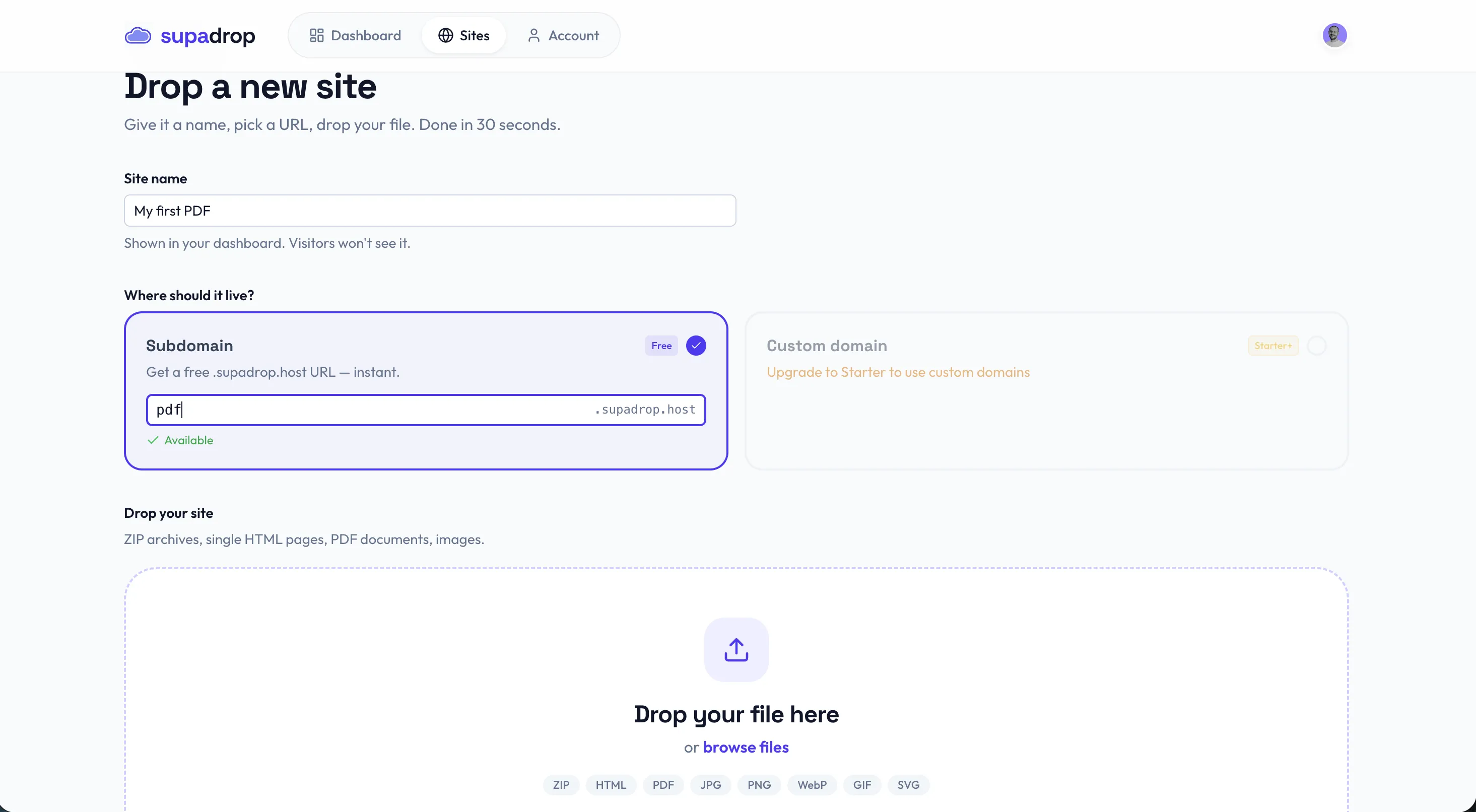
- Click “Drop a new site”, choose a name and a slug. The slug becomes your public URL (e.g.,
your-restaurant.supadrop.site). - Drop your
menu.htmlfile into the upload area. - Your menu is live instantly. Open the URL on your phone to check it looks right.
That’s it. Your menu is online in under 2 minutes.
A few things worth knowing:
- With a paid plan, you can connect your own domain (e.g.,
menu.yourrestaurant.com) for a more professional look. - Supadrop hosts static HTML files, which means your digital restaurant menu loads fast, even on slow mobile connections.
Step 4: Download Your QR Code
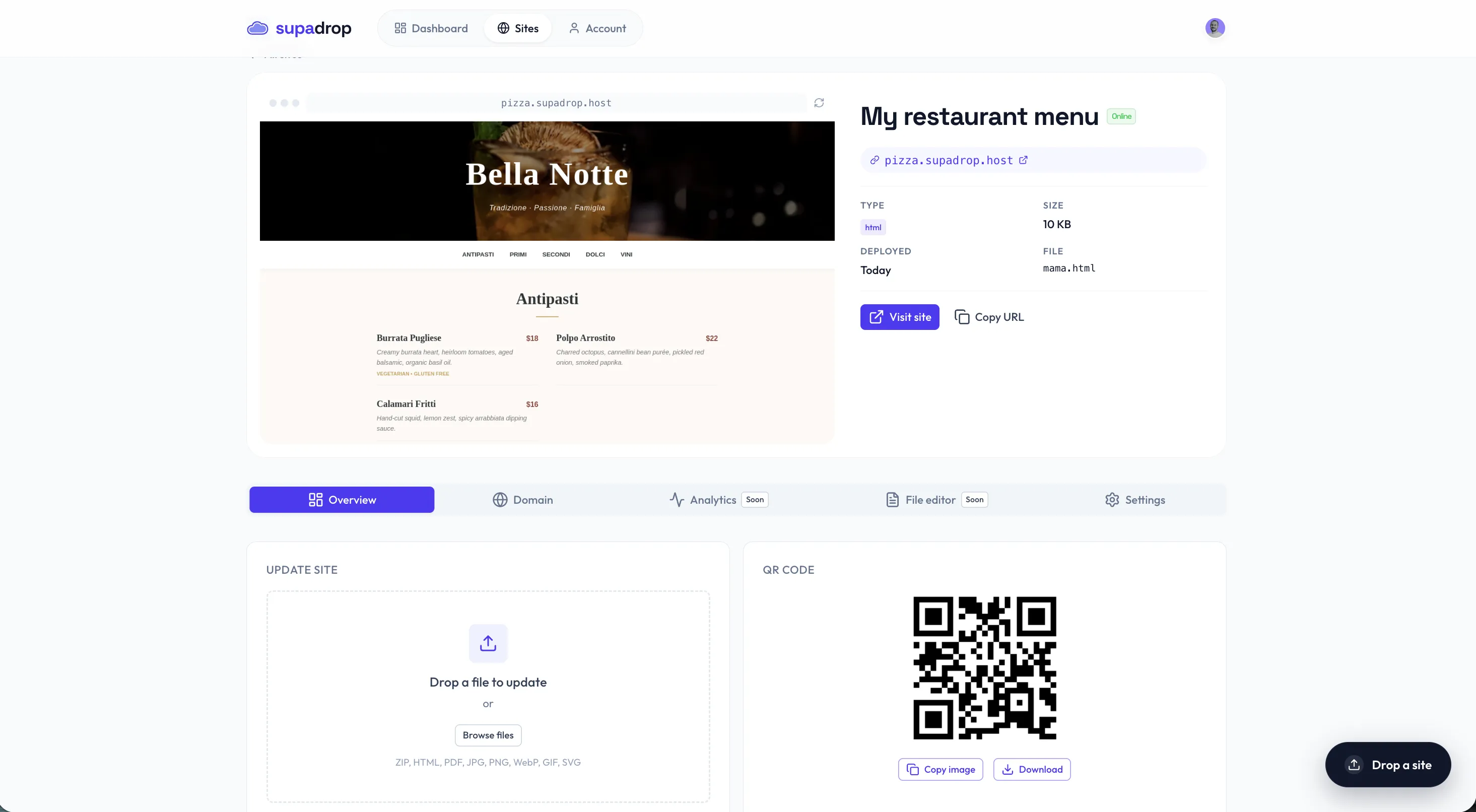
Supadrop automatically generates a QR code when you create your site. No extra tool, no extra step.
Just go to your site dashboard and copy or download the QR code as a PNG file. It’s already linked to your menu URL.
As long as the URL stays the same, the QR code always works, even after you update the menu content. If you want to learn more about static vs dynamic QR codes and scan tracking, check out our complete QR code guide.
Step 5: Place Your QR Code in Your Restaurant
A QR code nobody sees is a QR code nobody scans. Placement matters a lot.
Best spots:
- Table tents (small folded cards on each table, highest scan rate)
- Stickers on tables, cheap and durable. Always add a short instruction like “Scan for menu.”
- At the entrance, great for takeaway customers or walk-ins checking your menu before sitting.
- On receipts, lets customers browse again or share with friends.
- On your front window, catches foot traffic outside.
Adding a short label like “Scan for our menu” next to the QR code can more than double your scan rate. Customers scan more when they know exactly what they’re getting.
How to Update Your Digital Menu Without Reprinting QR Codes
This is one of the biggest advantages of a digital menu: you never need to reprint your QR codes.
When prices change, a dish sells out, or you add a seasonal special:
- Open your
menu.htmlfile in a text editor. - Make your changes (update a price, add a dish, remove an item).
- Save the file.
- Re-upload it to Supadrop. The URL stays exactly the same.
- Done. Every customer who scans your QR code now sees the updated menu instantly.
Frequently asked questions
Is it really free?
Yes. Supadrop offers a free 15-day trial with full access, no credit card required. After the trial, you can upgrade to keep your menu live. If you do not upgrade, your site goes offline, but your files are not deleted, so you can reactivate anytime. See our pricing for details.
Do I need coding skills?
No. ChatGPT generates the entire HTML file for you. You just copy, paste, and save. If you can use email, you can do this.
Can I use a custom domain name?
Yes. With any paid plan, you can connect your own domain (e.g., menu.myrestaurant.com) to your hosted menu page for a fully branded experience.
What if I want to update prices or add a dish?
Open the HTML file, make your edits, and re-upload to Supadrop. The URL stays the same, so your QR code keeps working. No reprinting needed.
Is the QR code generator free?
Yes. The QR code generator is built into Supadrop and included in all plans, including the free trial.
Can I use this for multiple restaurant locations?
Absolutely. You can create a separate HTML menu file and QR code for each location. Each gets its own URL, and you manage them all from one Supadrop account.